
Setting up your Portal images is one of the most effective ways to strengthen your organisation’s online presence. High‑quality visuals help create a professional, trustworthy, and consistent experience for your users. Whether you’re updating your logo, refreshing your banner, or adding new branding elements, the right images make your Portal feel polished and aligned with your identity. This guide explains why Portal images matter, what you can customise, and how to update everything using our step‑by‑step walkthrough.
Why Portal Images Are Important for Your Brand Identity
Your Portal is often the first place users interact with your organisation online. The images you choose—especially your logo and banner—play a major role in shaping first impressions. Strong visuals help you:
- Build a recognisable and consistent brand identity
- Improve user trust and engagement
- Create a clean, modern, and accessible interface
- Support your organisation’s professionalism
- Ensure your digital platforms feel cohesive
When your Portal images are clear, high‑quality, and well‑designed, users immediately feel more confident navigating your system.
What You Can Customise in Your Portal
Your Portal allows you to update several key visual elements. Each one contributes to the overall look and feel of your user experience.
- Organisation logo — This is the primary visual identifier for your brand. A clean, high‑resolution logo helps users instantly recognise your organisation.
- Banner or header image — This large image sits at the top of your Portal and sets the tone for your branding. It’s an ideal place to showcase your colours, style, or mission.
- Additional images — Depending on your setup, you may have other visuals that support your content or navigation. These can also be updated to match your brand.
Keeping these elements consistent ensures your Portal feels unified and professional.
Example of a Well‑Designed Portal Homepage
Below is an example of a Portal homepage layout that uses clear, high‑quality images to guide users through different activity types. Each category is visually distinct, easy to recognise, and supported by a consistent design style.
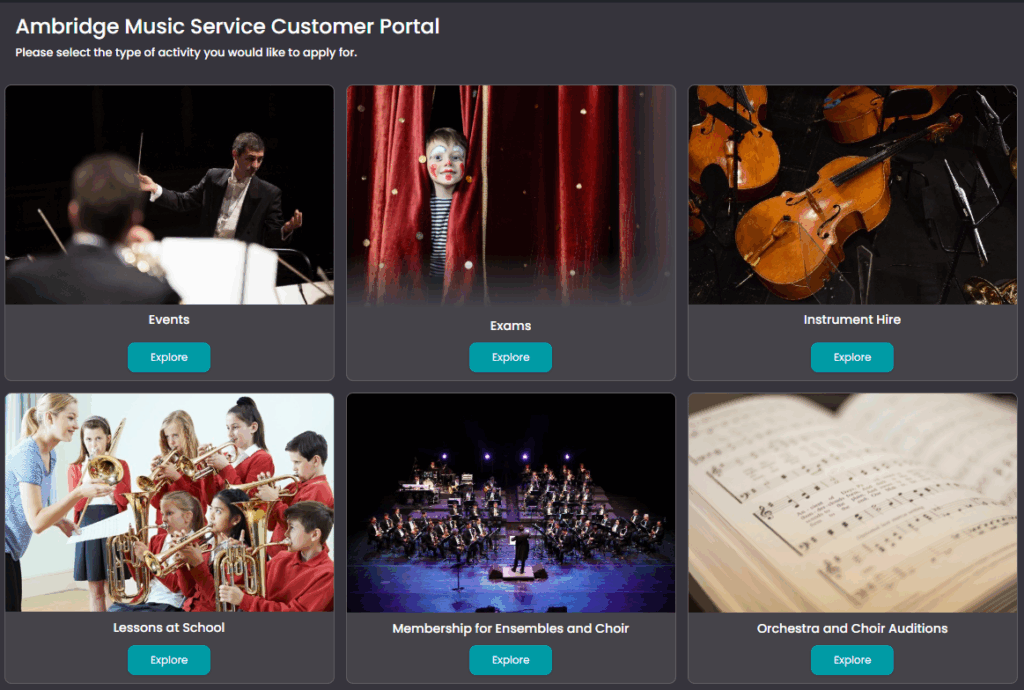
Caption: Example of a Portal homepage using strong visuals to highlight Events, Exams, Instrument Hire, Lessons at School, Memberships, and Auditions.
This type of layout shows how effective imagery can help users quickly understand where to go and what to select, improving both navigation and overall user experience.
How to Set Up Your Portal Images: Step‑by‑Step
To make the process simple, we’ve created a visual, interactive guide that walks you through each step of updating your Portal images. The walkthrough covers how to:
- Navigate to your Portal settings
- Upload new images or replace existing ones
- Adjust image sizes and positioning
- Preview your changes before saving
- Ensure your images display correctly across devices
You can access the full guide here:
Setting up Portal Images
This guide is designed to be easy to follow, even if you’re not confident with technology. Each step includes screenshots and clear instructions so you can update your images quickly and accurately.
Best Practices for High‑Quality Portal Images
To get the best results, it’s important to choose images that are visually strong and technically suitable. Here are some tips to help you optimise your Portal visuals:
- Use high‑resolution images to avoid blurring or pixelation.
- Keep your logo simple and uncluttered, especially if it includes text.
- Choose wide, landscape‑friendly images for banners so they display well on all screen sizes.
- Maintain consistent colours and styles across your logo, banner, and additional visuals.
- Avoid overly busy backgrounds, which can distract from your content.
- Preview your updates to check how they appear on desktop, tablet, and mobile.
These small adjustments can significantly improve the overall appearance of your Portal.
How Updated Portal Images Improve User Experience
Beyond branding, well‑designed Portal images also enhance usability. Clear visuals help users navigate more easily, understand where they are within the system, and feel more confident interacting with your content. A polished Portal reduces confusion, increases engagement, and supports a more positive experience for parents, students, staff, or customers—depending on your organisation.
When your Portal looks professional, users are more likely to trust the information you provide and return regularly.
Final Thoughts
Updating your Portal images is a quick and impactful way to improve your organisation’s online presence. With the step‑by‑step guide, you can easily upload new visuals, refresh your branding, and ensure your Portal looks clean, modern, and consistent. High‑quality images help create a strong first impression and support a better user experience overall.