

A full class doesn’t have to mean a missed enrolment. Waitlist management software for classes records interest in a full session and helps you manage what happens when a place opens, from contacting waiting students to keeping the list current.
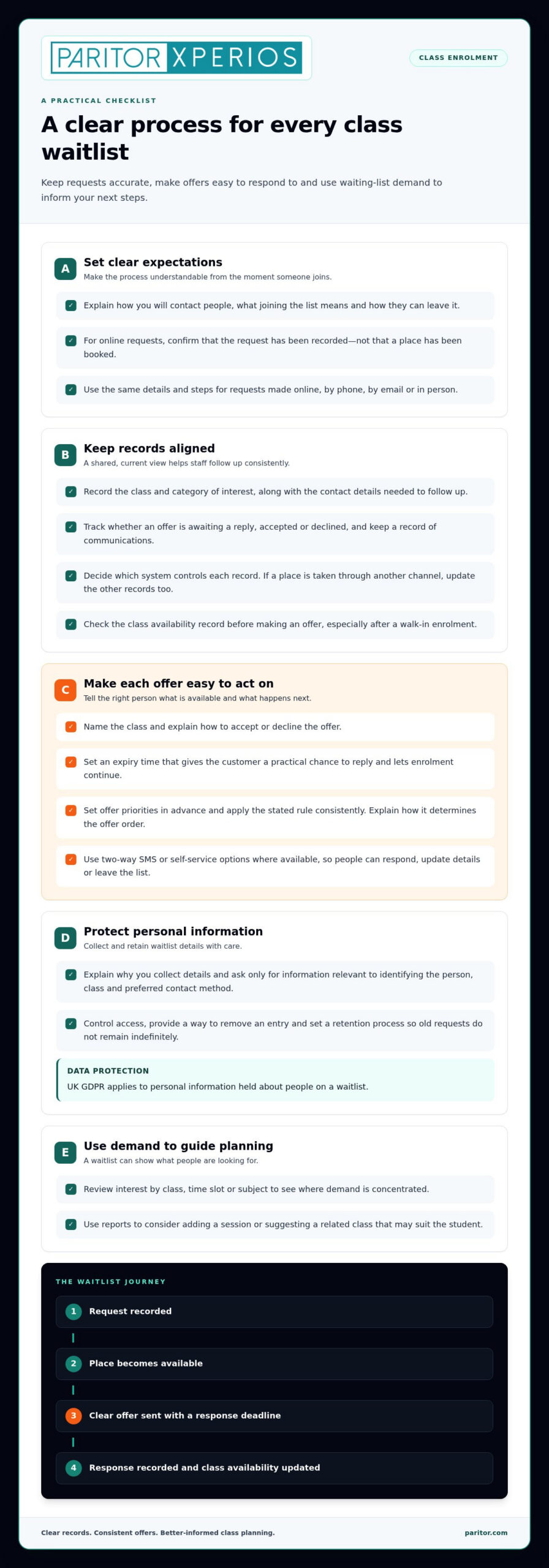
A clear process matters as much as the software. Students should know how you’ll contact them, what joining the list means and how to remove themselves. A well-managed waitlist can also reveal demand for another session or help you offer a suitable alternative.
This article explains what the software does, how it can work alongside class booking systems and what to consider when choosing an approach. You’ll also learn how to offer open places to waiting students in an orderly way, spending less time coordinating enrolments and more time on teaching.
Key Takeaways
- Set clear expectations for how students join, hear about available places and leave a waiting list.
- Keep waitlist details aligned with class bookings so an opening can be offered to the right students.
- Choose a system that fits your enrolment process, reporting needs and existing administrative workflows.
- Track waiting-list demand to inform decisions about extra sessions or suitable alternatives.
- Make notifications timely and clear, with a straightforward way for students to respond to an offer.
What is waitlist management software?
Waitlist management software for classes records interest in full sessions and organises the process when a place becomes available. It can bring class details, customer communication and scheduling together in one management platform.
Waitlist benefits for customers and scheduling
A waitlist gives someone a clear next step when their preferred class is full. A useful policy explains how you’ll contact them, what joining the list means and how they can leave it. For example, a student waiting for a music class can receive an offer when a suitable place opens, rather than repeatedly checking availability.
A full waitlist also shows which class, time or subject is attracting interest. Use that information to consider adding a session or suggesting a related class. Record each person’s class and category of interest so follow-up is relevant. Reports can help distinguish demand for a particular time slot from wider interest in a subject.
Online and manual waitlist entry
An online form can let a customer select a full class and submit their contact details. Keep it focused: collect only what you need to identify the person, class and preferred contact method. The confirmation should say that their request has been recorded, not that a place is booked.
Staff can also add someone by phone, email or in person. Use the same fields and steps as for online requests, then check the class and contact details before saving. This keeps one list accurate across different sign-up channels. Tag entries by class and category to make future offers easier to match.
Customer communication and self-service
Plan the customer journey from joining the list to accepting, declining or withdrawing. Two-way SMS can let someone reply to an offer, while self-service options can allow them to update their details or leave the list. Clear instructions make these options easier to use and reduce routine follow-up.
UK GDPR applies to personal information held about people on a waitlist. Explain why you collect their details, limit collection to relevant information, control access and provide a way to remove an entry. Set a retention process so old requests don’t remain on the list indefinitely.
Set your offer priorities in advance. For example, a provider might prioritise people who belong to the organisation, have a relative in the class or have attended before. Apply the stated rule consistently and explain how it determines the offer order.
Class notifications and waitlist features
When a place opens, the notification should identify the class and explain how to respond. Set an expiry time that gives the customer a practical chance to reply while allowing enrolment to continue. The right window depends on the class start date and how soon you need to confirm the booking.
Waitlist management software for classes should support online and staff entry, class-specific lists, status tracking, communication records and configurable offer rules. Check that staff can see whether an offer is awaiting a reply, accepted or declined. A shared view helps prevent duplicate offers and keeps follow-up consistent.
Notifications can confirm a request, explain a class change or acknowledge that someone has left the list. Review the wording and make the requested action clear. For example, a student offered a place should know how to accept and what happens if they don’t reply before the stated expiry. When choosing waitlist management software for classes, check that its notifications fit your enrolment workflow.
Integrations with booking and business systems
A connected booking process keeps class availability, reservations and waitlist records aligned. Map each step: a person finds a class, selects a session, books or joins the waitlist, then receives an update. This shows how information moves between your booking system, management platform and staff dashboard, and where someone might have to enter the same details twice.
Integration might mean a direct connection between systems or a shared process managed by staff. Don’t assume every system updates instantly or shares every field. Identify the essential information, such as class name, session time, available places, customer details and booking status. Decide which system controls each record. If someone takes a place through one channel, staff need a process to update the others.
Online booking and social media serve different purposes. A social post can direct people to a class page where they can view session details and make a reservation. Keep the class name and booking destination consistent across the post and page. If a platform offers an integration, assess what information it sends to the booking system. Otherwise, a clear booking link can still guide customers through one defined route.
Booking windows determine when customers can reserve an available place. Set opening and closing times around the class timetable and enrolment process. For example, a provider might offer a place to the waitlist before making it available to all customers. State when the offer begins, when general booking opens and how staff handle a late reply.
Class and service bookings may require different information. A group lesson might need a session choice, while an individual service might ask for a preferred time. Use separate booking options when the details or allocation process differ. This helps customers choose correctly and gives staff clearer reports. Review the journey from the customer’s perspective, including the confirmation and next steps.
Walk-ins can sit alongside online reservations if both routes update the same availability record. Give staff a clear way to record an in-person booking, then check the dashboard before offering a place to someone waiting. For example, a receptionist should mark the relevant class place as taken after recording a walk-in enrolment. This reduces conflicting records and supports accurate scheduling.
To assess fit, trace a sample booking from discovery through confirmation, cancellation and reporting. Note each manual step and the system responsible. For music services, consider how music service administration fits the booking workflow, from class information to enrolment oversight.
Choosing class waitlist software that fits
Choose a system based on how well it supports your organisation’s classes, staff and day-to-day processes. A practical assessment helps distinguish essential capabilities from features your team may not need.
Assessing software options
Start with the people who will use the system. A programme coordinator may need an overview of several classes, while a tutor may need access only to relevant enrolment details. Map user roles and the information each role requires. Then assess whether the software makes those tasks clear without giving every staff member unnecessary access.
Consider how the platform will support your organisation as teaching arrangements change. A provider adding subjects, venues or teaching teams needs a way to keep class records organised. Ask how staff would create a class, assign responsibility and review its records. A consistent structure makes reliable information easier to maintain as programmes evolve.
Checking suitability for your organisation
Review the system’s approach to information security and data protection. Identify who can view or change customer records, how access is managed when staff responsibilities change, and how your organisation can keep information accurate. These checks help you assess whether the platform supports your procedures for handling personal details.
Staff adoption matters too. Consider whether the screens and tasks are clear to the people who will use them regularly. Testing a real class scenario can reveal confusing steps, unclear labels or information that’s hard to find. Include administrative and teaching staff in the assessment, as their day-to-day responsibilities differ.
Prepare a simple evaluation sheet before reviewing software. Record whether each option supports the tasks your organisation considers essential, and note any steps that still depend on manual work. For example, a coordinator could assess how easily staff can view class records, find enrolment details and keep information consistent across a programme.
Plan how you’ll review the system after implementation. Decide who will guide staff, how process changes will be communicated and how feedback will be collected. An internal lead can gather questions from tutors and administrators, then identify recurring difficulties. This makes it easier to improve working practices and keep the system aligned with how your organisation delivers classes.
Assess the platform in the context of your wider teaching administration. A tool that fits one class may not support a school, studio or course provider with varied programmes. Compare each option against your actual roles, records and future plans, then choose the one that best supports the way your team works.
Waitlist and queue performance outcomes
Queue management helps coordinate people waiting for a class, event or in-person service. Digital check-in records who has arrived, while a virtual queue can let guests wait elsewhere rather than form a physical line. These tools work best when staff follow the same process for online arrivals and walk-ins. For example, reception staff can mark an attendee as present and use the queue view to see who still needs help.
To assess performance, track practical measures such as time from check-in to service, queue length, missed offers and places filled. Compare the same class or service across sessions rather than treating one busy day as a trend. If people wait longer before an evening class, review arrival times, staff availability and scheduling. Records can show where delays occur, but context is needed to understand why.
Virtual queues need clear position and status information. Tell each person whether they’re waiting, being contacted or no longer active. A position can change when someone declines an offer or staff apply a stated priority rule. Don’t present a position as a guaranteed start time: an earlier booking, late arrival or staff decision may affect progress. A visible status and next step help people know what to expect.
For multiple locations, use a separate queue for each site, class and service. A central dashboard can help managers compare demand, while local staff update arrivals and openings at their venue. For example, a music provider running classes at different schools needs records that distinguish each location and session. Don’t merge queues unless customers are eligible for the same place and follow the same allocation rules.
Evaluation criteria can also show which capabilities deserve attention. One methodology assigns 25% to walk-in waitlists and virtual queuing, and 20% to waitlist and appointment unification. It gives 15% each to multi-location and multi-service support, and two-way SMS with real-time communication. Reporting and analytics receive 10%, whilst pricing and total cost of ownership receive 5%. These are that methodology’s assessment weights, not expected performance results.
Use reporting to compare queue activity with actual outcomes. Check how often an opening is filled, how long customers remain waiting and which locations see recurring demand. Google may help customers discover class information, but queue performance depends on accurate booking records and staff updates. Review the figures with the team, then adjust the process where a specific delay or handover is creating avoidable work.
Automatic notifications when class places open
Automated alerts can tell waiting customers when a suitable class place becomes available. They’re useful when availability is accurate, messages are clear and the response process is straightforward.
Automated alerts for schedule openings
When a cancellation changes class capacity, an alert can prompt staff to contact eligible people. A system might send the message automatically or flag the opening for staff action. Check what triggers the alert and which class details it includes. A useful message names the session, explains how to respond and gives a clear next step.
Pop-up notifications can tell visitors that a place has opened while they’re viewing a class page. Treat these as prompts, not proof of a confirmed booking. Before displaying an opening, make sure the online availability matches current class capacity. Otherwise, a customer could act on a place already taken through another booking route.
Automatic offers and enrolment
A class waitlist records customers interested in a full session. When a place opens, the provider applies its offer rules, contacts an eligible person and records their response. Enrolment is complete once the customer accepts and the booking record shows the confirmed place. Make sure the message distinguishes an invitation from a completed reservation.
Set the offer order and response deadline in advance. For example, a provider may contact the next eligible person, then move to the next if the offer expires or is declined. Keep each offer’s status visible to staff. This supports consistent decisions and prevents two customers from believing they have the same place.
Filling cancelled places and reducing no-shows
A cancellation alert can prompt an offer to the next eligible customer, helping staff refill the class. Confirmation messages and reminders before the session can also help customers remember their booking. Include a simple way to cancel, so someone who can’t attend can release their place for another student.
No notification can guarantee attendance, but timely reminders and an easy cancellation process can help reduce missed sessions. For example, when a customer cancels promptly, staff have time to offer the place to someone waiting. Review cancellations, accepted offers and attendance together to see where the process loses time or leaves capacity unused.
Message timing should match the class schedule. A place opening for a session starting soon may need a prompt staff alert, while one opening further ahead allows more time for a customer to reply. Use concise wording and a consistent tone. Give each person clear information without sending repeated or irrelevant alerts.
Test the journey with a sample class: record a cancellation, trigger the alert, accept an offer and confirm the booking. Check that staff see the final status and that displayed availability updates. Explore music service administration to consider how enrolment workflows can support your teaching team.
Paritor: Xperios for Music Services
Paritor’s Xperios for Music Services brings scheduling, bookings, attendance tracking and automated invoicing together in a cloud-based management platform. It supports music services with connected administration for classes and enrolments, alongside secure online portals where teachers, parents and students can access real-time information.
If waitlist management is one part of a wider administrative workload, consider how it fits your existing booking and communication processes. Xperios supports core music service administration, helping reduce repetitive tasks so your team can focus more on teaching and supporting students.
To discuss your music service’s administrative needs, contact Paritor or visit paritor.com.
Make the next step fit your teaching
Before choosing waitlist management software for classes, decide what a better enrolment process should make easier for your team. It might mean fewer handovers, clearer ownership of booking changes or less time spent on routine administration. Naming that priority helps you assess whether a system supports the work your organisation needs to do.
Bring a real class scenario into the conversation: a place becomes available, a student needs an update and staff must keep records aligned. Consider how the process fits your wider teaching administration, who needs access to information and where staff still need to make decisions. These details provide a practical basis for discussing how a management platform could support your service, without treating software as a substitute for clear procedures.
If you’re ready to explore a suitable next step, contact Paritor about class waitlists. A more organised process can give your team greater space to focus on students and teaching.
Frequently Asked Questions
How to Create a Waiting List?
Create a separate list for each class, then record each person’s name, contact details and preferred session. Explain what joining means and how you’ll make contact. For example, a school could keep separate lists for beginner and advanced piano to avoid mismatched offers. Use a consistent process for adding telephone or in-person requests, and remove entries when someone accepts, declines or withdraws.
What are the benefits of having a waitlist?
A waitlist gives interested customers a route to a full class and helps you see where demand is building. If several people request the same session, consider adding a class or offering a suitable alternative. The list also gives staff people to contact after a cancellation, rather than searching through old enquiries. Clear joining and removal steps help customers understand their options.
Which Waitlist Platform Is Right for Your Business?
The right platform matches your class structure, booking process and staff responsibilities. A solo tutor may need simple records and clear customer updates, while a school with several programmes may need shared access and class-level reporting. Map a typical cancellation and enrolment, then compare how each system supports those tasks. Include data access controls and the process for maintaining accurate customer records.
Which waitlist management software is best for classes in the UK?
Choose software that fits your teaching organisation and wider enrolment administration. Paritor offers Xperios for Music Services, Xperios for Performing Arts and Xperios for Private Teachers. These products are designed for music or performing arts administration, rather than as standalone queue tools. Compare your class workflow with the system’s broader scheduling and booking functions before deciding.
Can class waitlist software integrate with booking, payment and email systems?
Some systems connect waitlist records with booking and payment processes, whilst others rely on staff to update information across tools. Paritor’s Xperios includes online payment processing and automated invoicing. For any platform, map how a booking, payment and customer message should be recorded. This helps you identify duplicate data entry and see whether staff can follow one consistent process when a place is accepted.
Which platforms offer free plans or trials for managing class waitlists?
Free plans and trials have different terms, so compare what each option lets you test or manage. Check limits on classes, users, records and communication, then consider whether they suit your enrolment process. A trial is most useful when you test a cancellation, an offer and an accepted booking. Don’t treat a free option as suitable unless it supports the tasks your team needs.
How do popular class waitlist software options compare for schools, studios and course providers?
Compare platforms by the work your organisation needs to coordinate. A school may need staff access across programmes; a studio may prioritise session capacity and attendance; a course provider may need clear records across subjects. Use the same scenario for each system, such as a cancellation followed by an offer and confirmed booking. This makes differences in workflow, reporting and record keeping easier to assess.